EA Value Tracker
Every EA function eventually faces the same question from the CFO or CIO: what is architecture actually worth to us? Roadmaps and diagrams do not answer it — numbers do.
EA Value Tracker turns Turbo EA's Architecture Decision Records into an auditable financial ledger of the value your EA practice creates. Value is claimed where it originates — on the decision — frozen when the decision is signed, and later reconciled against what was actually realized, under a four-eyes approval. A dashboard rolls it all up, so the answer to the budget-review question is one report rather than a scramble through spreadsheets.
At a glance
| Licence | Commercial — a signed entitlement is required |
| Minimum Turbo EA version | 2.14.0 |
| Permissions | ext.value-savings.record, ext.value-savings.approve |
| Data access grants | None |
| Backend restart needed | Yes — it ships backend code |
| Where it appears | Value & savings panel on ADRs · Value realization ledger below the signature block · four columns on the Decisions grids · Reports → EA Value Tracker |
The lifecycle
Value moves through four stages, shown as a trail of chips on every decision:
Claimed (draft) › Claimed (approved) › Realized (pending) › Realized (approved)
- While an ADR is being drafted, architects attach savings claims.
- Signing the decision freezes them. The figures the signatories approved become approved claims and can no longer be edited.
- After delivery, someone records what was actually realized against each claim.
- A second person approves the realization — the recorder can never approve their own figures.
Claiming value on a decision
Open a draft ADR (EA Delivery → Decisions) and scroll to Value & savings, just after Consequences.
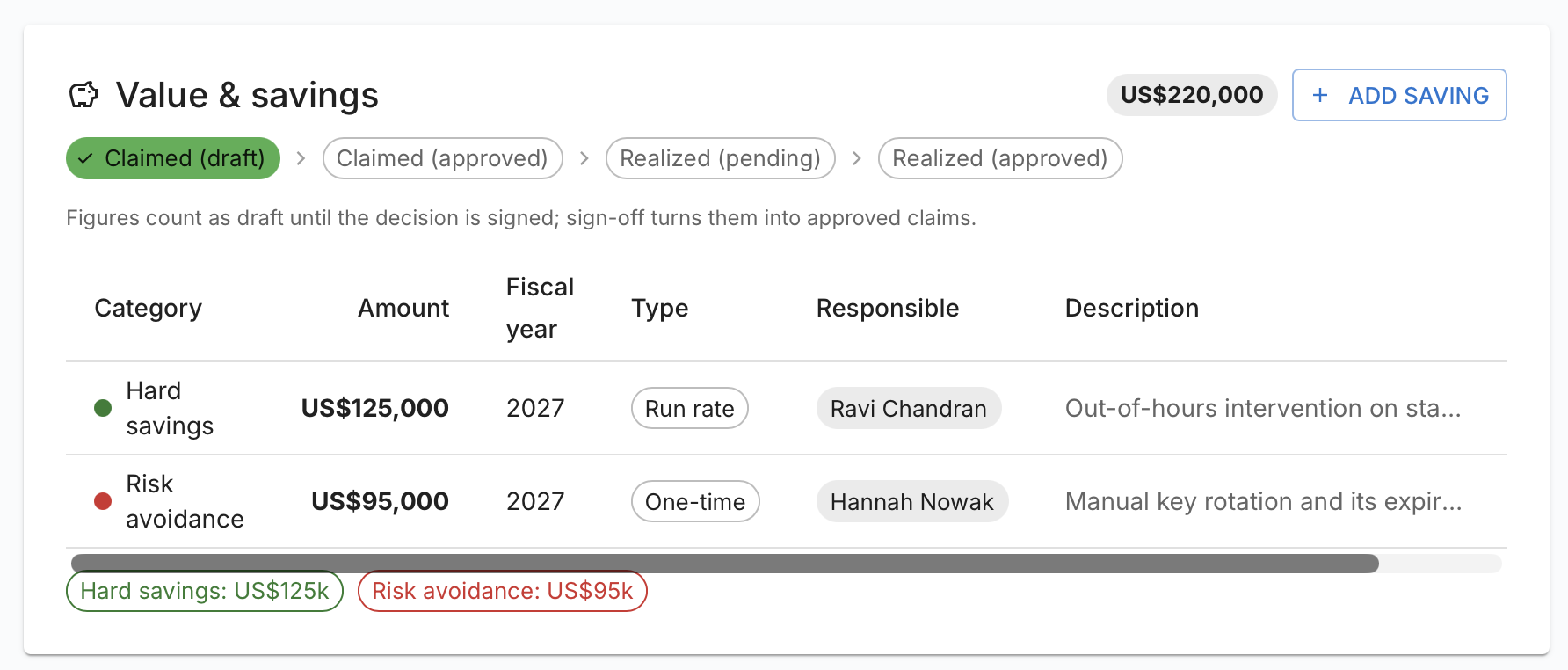
Press Add saving and complete the dialog:
| Field | Notes |
|---|---|
| Category | Hard savings, Soft savings, Cost avoidance, Revenue enablement or Risk avoidance |
| Amount | In your workspace currency. Must be greater than zero |
| Fiscal year | Derived from the fiscal-year-start setting in General Settings |
| Type | One-time or Run rate |
| Responsible | One or more people accountable for the figure |
| Description | Optional free text |
Add as many claims as the decision warrants. A running total is shown next to the panel heading, with a chip per category underneath.
Run rate is informational
A Run rate entry stays in the fiscal year you gave it — it is never automatically expanded across later years. The distinction is there so readers can tell a recurring annual saving from a one-off, and so the dashboard can report the annual run-rate separately.
Editing claims needs the normal adr.manage permission for decisions.
What happens at signature
When the signatories sign the decision, Turbo EA freezes the whole decision — including its claims. The editor disappears from the body and:
- the claims become Claimed (approved) and are read-only;
- a Value realization ledger appears below the signature block;
- a Value realization button and Claimed / Realized chips appear in the decision's header row, next to Duplicate and New revision.
To change an approved figure, create a new revision of the decision. That is deliberate: the numbers the signatories approved stay exactly as they approved them.
Recording and approving realized value
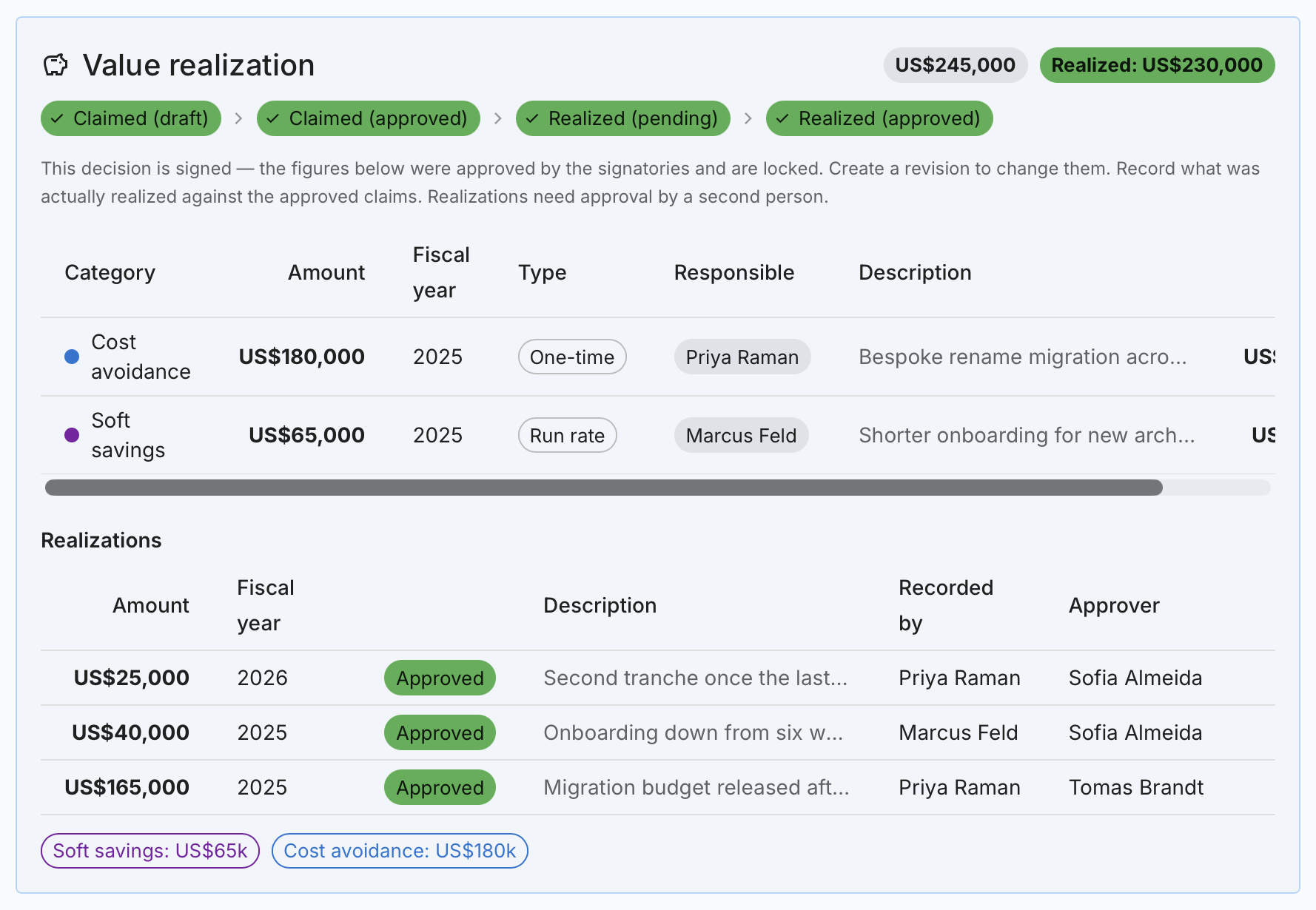
Recording. Anyone with ext.value-savings.record sees a Record button on
each approved claim that has no realization yet. The dialog asks for the actual
Amount, the Fiscal year, an Approver, and an optional description.
The approver must be someone other than the recorder — a four-eyes rule enforced on the server, not just in the form. Saving creates the row as Pending and raises a task for the approver ("Approve realized value: …") linked back to the decision, together with the usual assignment notification.
Approving. The named approver — who must also hold
ext.value-savings.approve — opens the decision and presses Approve or
Reject on the pending row. The task is completed and the figure becomes
Realized (approved). Rejected rows are kept for the audit trail.
Corrections.
- Only the person who decided may flip their decision later, or press Withdraw decision to return the row to pending (which reopens the task).
- Only the recorder may delete their own row, and only while it is still pending. Approvers reject rather than delete.
- To correct a figure that is already approved, record a new adjusting entry rather than editing history.
The dashboard
Reports → EA Value Tracker rolls everything up.
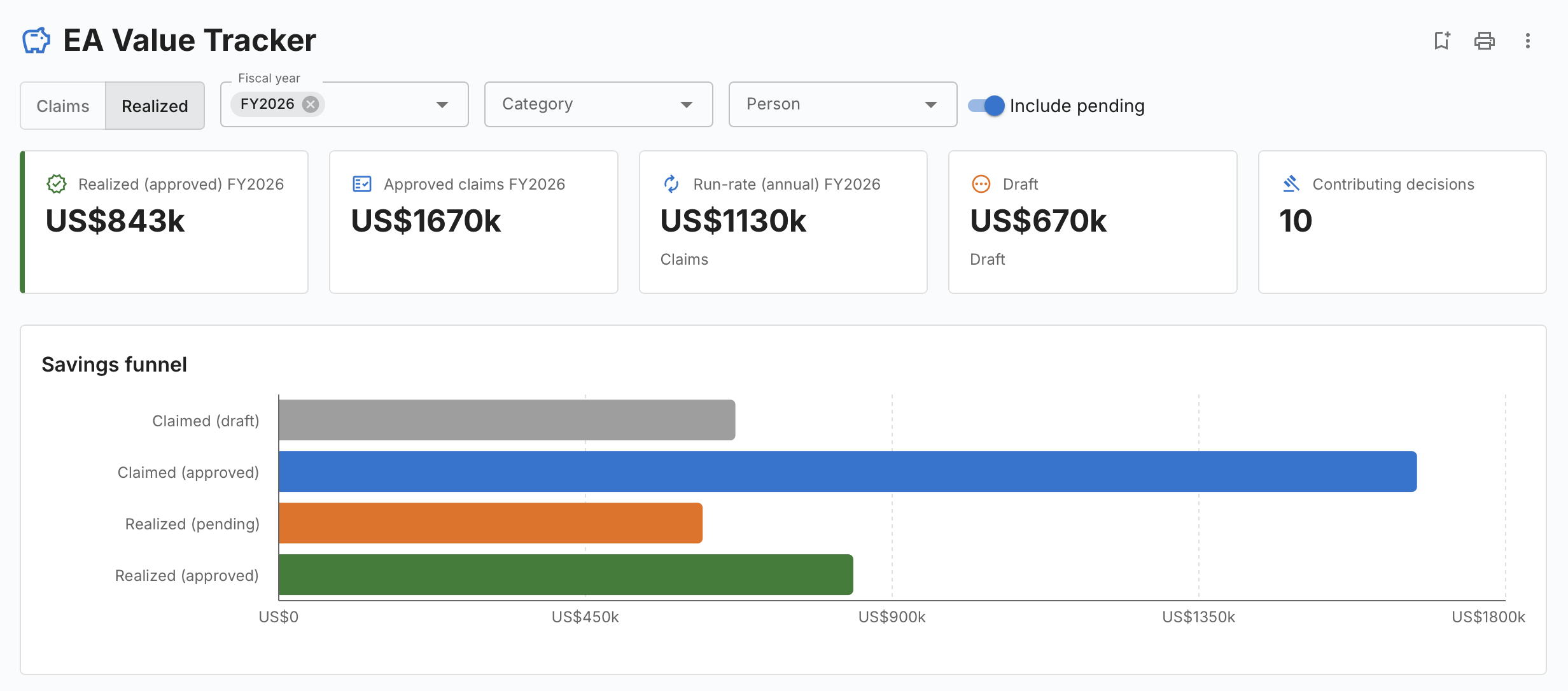
Toolbar
- Claims / Realized — the basis for the whole report: value claimed on decisions, or value actually realized.
- Fiscal year — the current fiscal year is pre-selected; deselect everything to see all years.
- Category and Person filters.
- Include drafts (Claims basis) or Include pending (Realized basis).
KPI tiles — Realized (approved), Approved claims, Run-rate (annual), Draft, and the number of contributing decisions.
Savings funnel shows the four stages side by side, so the gap between what was promised and what was banked is immediately visible.
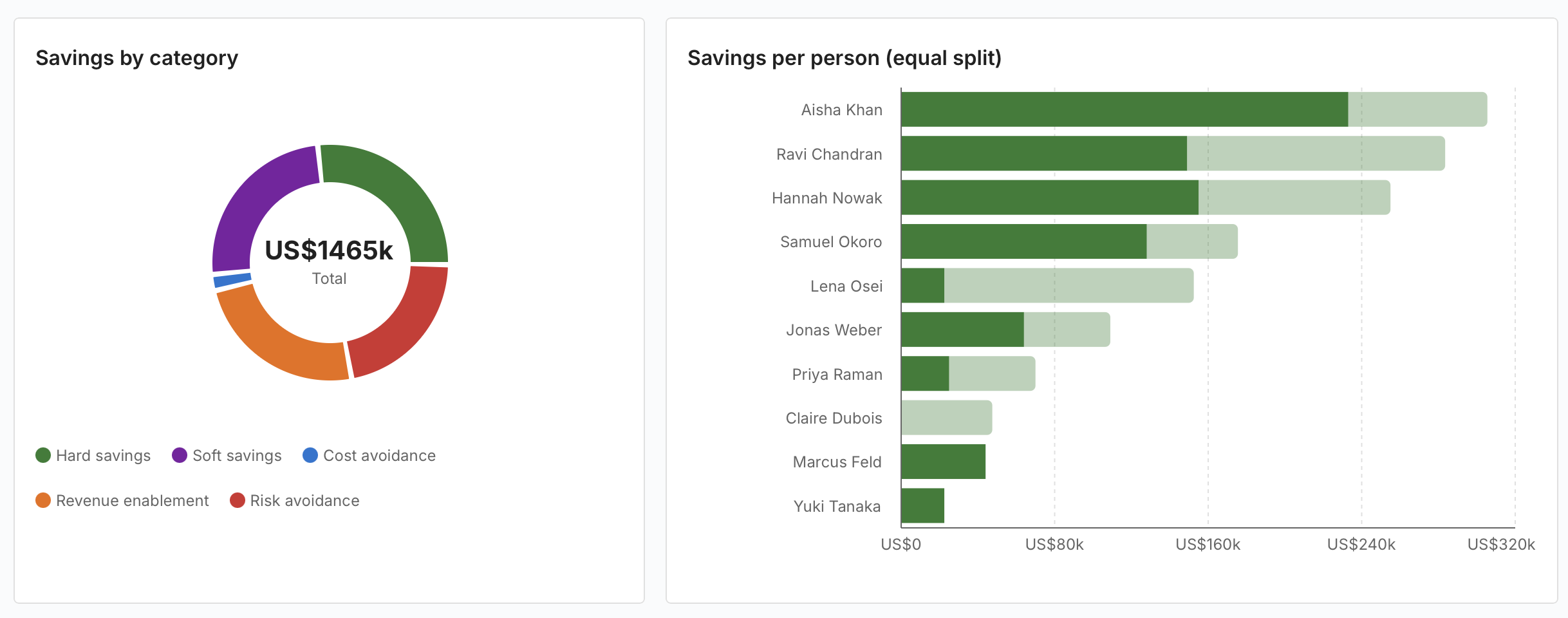
Savings by category is a donut with the total in the middle. Savings per person (equal split) credits an entry assigned to N people with amount ÷ N each, so no value is double-counted.
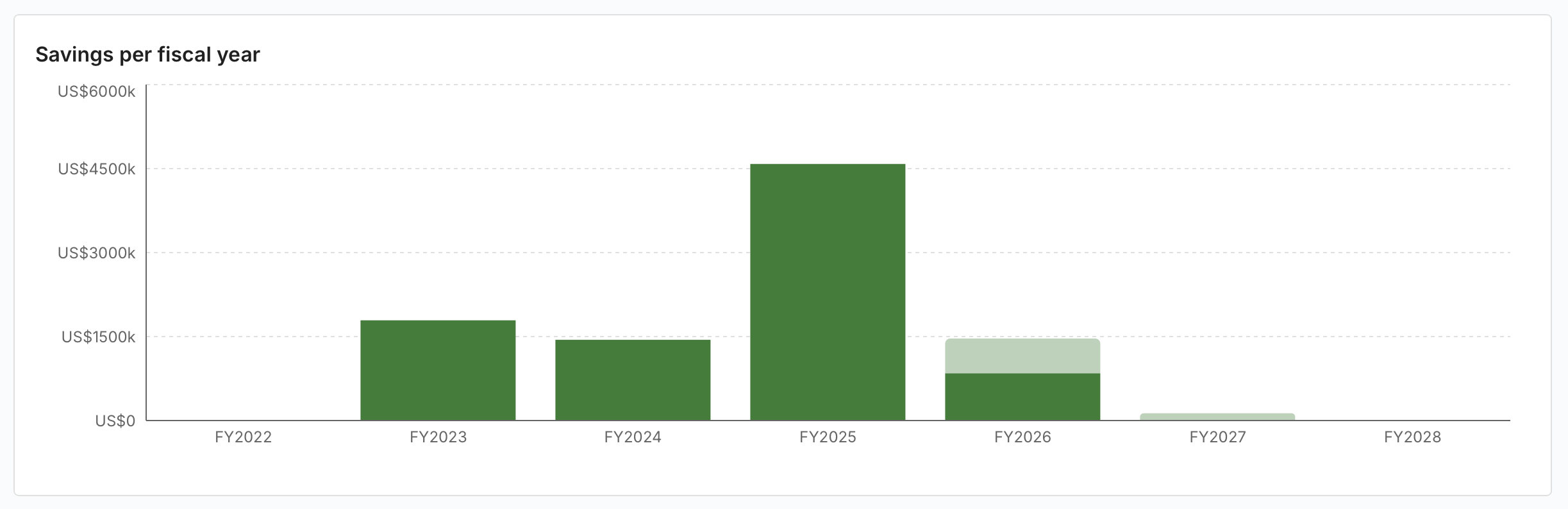
Savings per fiscal year spans a fixed window from four years back to two years ahead and deliberately ignores the fiscal-year filter, so the trend is always readable.
Two tables complete the picture: the per-person breakdown, and Contributing decisions — the full ledger, with an Open link to each decision.
The report saves, shares, prints and exports to XLSX and PPTX like any core report, so it can go straight into a steering-committee pack.
On the Decisions grids
Four columns are added to the shared decisions grid, on both EA Delivery → Decisions and GRC → Governance → Decisions:
| Column | Shows |
|---|---|
| Savings Claimed | Total claimed on that decision |
| Savings Realized | Total approved realizations |
| Savings Approver | Who approved the realizations |
| Savings Stage | The furthest stage the decision has reached |
They behave like native columns — sorting, quick filter and theming all work, and they can be hidden or frozen from the column chooser.
Permissions
| Permission | Grants |
|---|---|
adr.view (core) |
See the panels, the grid columns and the dashboard |
adr.manage (core) |
Add, edit and delete claims on an unsigned decision |
ext.value-savings.record |
Record a realization against an approved claim |
ext.value-savings.approve |
Approve or reject a realization — and be the person named as its approver |
Assign the two extension permissions in Admin → Users & Roles. Note that
holding ext.value-savings.approve is not enough on its own: the server also
checks that you are the approver named on that particular row.
If the licence lapses or the extension is disabled
The panels, the grid columns and the dashboard disappear, but nothing is deleted. Claims live in the decision itself and travel with a workspace transfer; realizations stay in the extension's own tables. Applying a renewed licence brings everything back.
Notes and limitations
- Savings are deliberately not included in the ADR Word export — the export is the decision record, not the financial ledger.
- Realizations are recorded against an approved claim, so a decision must be signed before any value can be realized against it.
- The extension ships backend code, so installing or updating it needs a one-off backend restart. Turbo EA shows a banner when this applies.