Compliance¶
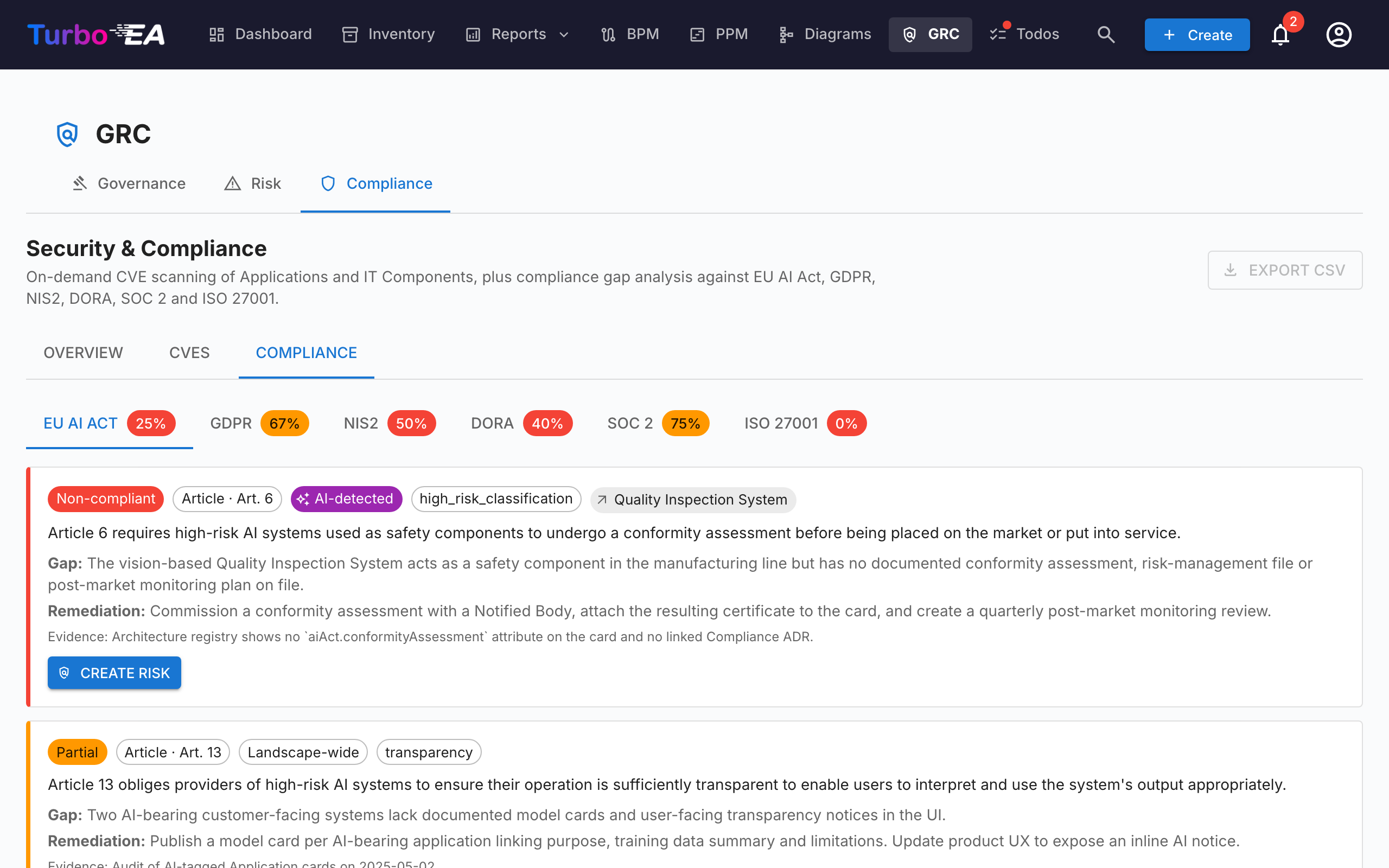
The Compliance tab of the GRC module at /grc?tab=compliance is a dual-source register: every finding either was authored by a reviewer or was produced by an AI scan against a regulation, and both kinds of finding live and are triaged side-by-side in the same grid.
Note
Six regulations ship enabled by default — EU AI Act, GDPR, NIS2, DORA, SOC 2, ISO/IEC 27001. Admins can enable, disable or add custom regulations (e.g. HIPAA, internal policy frameworks) under Administration → Metamodel → Regulations.
Two ways findings land in the register¶
| Source | Who creates it | When to use |
|---|---|---|
| Manual | A user with compliance.manage clicks + New finding on the Compliance grid |
Audit-led obligations, externally-reported gaps, third-party attestations, anything you want tracked that an LLM scan would not surface |
| AI scan (TurboLens) | A user with compliance.manage triggers a scan from the Compliance toolbar |
Periodic landscape gap analysis against the enabled regulations |
The two paths share the same data model and lifecycle. A scan never deletes or overrides a manual finding, and a manually-entered finding can be promoted to a Risk, propagated back from a Risk close, and bulk-acted on exactly like an AI-detected one.
Authoring a finding manually¶
Click + New finding in the Compliance toolbar to open the create dialog. Required fields:
| Field | Description |
|---|---|
| Regulation | Pick one of the enabled regulations. Determines the article picker. |
| Article | Free-text identifier (Art. 6, § 32, Annex II, …). Normalised on save so re-scans don't duplicate the row. |
| Requirement | The clause or control you are tracking. |
| Status | new, in_review, mitigated, verified, accepted, not_applicable, risk_tracked. Defaults to new. |
| Severity | low, medium, high, critical. |
| Gap | Description of the gap or observation. |
| Evidence | Supporting evidence, audit notes, links. |
| Remediation | Suggested remediation. Used as the seed for the mitigation task if you later promote the finding to a Risk. |
| Scope | Required. Choose A specific card — scope the finding to a single Application or IT Component — or The whole landscape for a systemic, estate-wide gap that no single card owns (e.g. a missing organisation-wide procedure). Landscape findings are shown in green under the Card column. |
| Linked risk | Optional — pre-link to an existing Risk if one is already tracking this gap. |
Every finding must be scoped either to a specific card or to the whole landscape — there is no ambiguous "no card" state. Landscape scope is a first-class choice, not a blank: AI scans also produce landscape findings for systemic controls that span the estate.
compliance.manage is required to create, edit, retire or bulk-act on findings. compliance.view is enough to read the register and triage from the card-level Compliance tab.
Editing a finding¶
Open any finding — from the Compliance grid or from a card's Compliance tab — and click Edit in the drawer to change its compliance status (for example Compliant → Partial), severity, requirement, gap, evidence, remediation, article, or linked card after it was created. Editing the content leaves the finding's lifecycle decision untouched; use the lifecycle timeline for that. Requires compliance.manage.
Running an AI scan¶
AI required for scans, not for manual findings
Manual findings work in any deployment. AI scans require a commercial AI provider (Anthropic Claude, OpenAI, DeepSeek, or Google Gemini) configured in AI Settings.
Tick the regulations to include and click Run compliance scan. The scan runs in the background as a TurboLens analysis run:
- Loading cards — the live landscape snapshot is pulled.
- Semantic AI detection — every card's name, description, vendor and related interfaces are checked for AI / ML signals (LLMs, recommendation engines, computer vision, fraud or credit scoring, chatbots, predictive analytics, anomaly detection). Cards flagged here carry an
AI-detectedchip in the grid even when their subtype is notAI Agent/AI Model. - Per-regulation check — the configured LLM runs the regulation's checklist against the scoped cards.
The page renders a live phase-aware progress bar. Refreshing the page does not interrupt the scan — the background task keeps running server-side, and the UI re-attaches the poll loop on mount via /turbolens/security/active-runs.
The scan only replaces findings for the regulations you scoped. Other regulations' findings stay intact.
How manual and AI findings coexist¶
Compliance findings upsert by (scope, card, regulation, normalised_article). That key keeps the two sources from colliding:
- A manual finding the next AI scan would also produce is reconciled against the existing row — your evidence, reviewer notes and status survive; only the LLM's gap / remediation text is refreshed if it changed.
- An AI-detected finding that the next pass no longer reports is not deleted. It is flagged
auto_resolved=trueand hidden by default, so its history and any promoted Risk back-link stay intact. - The user's AI verdict on a card (
hasAiFeatures = true / false) sticks. If you confirm or reject the LLM's AI-bearing classification, that decision overrides the detector on subsequent scans — LLM drift can't silently re-scope a finding.
Status workflow¶
Findings have a 4-state main path with 3 side branches, rendered as a horizontal phase timeline in the finding drawer:
new → in_review → mitigated → verified
                      ↘ accepted          (side branch, requires rationale)
                      ↘ not_applicable    (side branch, scope review)
                      ↘ risk_tracked      (set automatically on promote-to-Risk)
Transitions are restricted to users with compliance.manage. The engine enforces transitions server-side and rejects illegal moves with a clear error. Choosing Accepted — whether from the GRC Compliance module or a card's Compliance tab — opens a dialog to capture the required review rationale before the transition is saved.
risk_tracked is never set by hand — it is written automatically when you click Create risk on a finding and is cleared by the Risk back-propagation engine when the linked Risk closes.
Promote a finding to the Risk Register¶
Every finding card (manual or AI-detected) carries a Create risk primary action. Clicking it opens the shared create-risk dialog with the title, description, category, probability, impact and affected card prefilled from the finding. You can edit any field before submitting, assign an owner, and pick a target resolution date.
On submit, the finding's row flips to Open risk R-000123 so the link stays visible. The action is idempotent — clicking it again navigates to the existing risk instead of creating a duplicate.
A one-shot mitigation task is automatically spawned on the new Risk, seeded from the finding's Remediation text — so the gap analysis turns into actionable, owned work on the spot. See Risk Register → Promoting from a TurboLens compliance finding for the full lifecycle and how owner assignment creates a follow-up Todo + bell notification.
When the linked Risk later reaches mitigated, monitoring, closed or accepted (or is deleted), the back-propagation engine automatically moves every linked compliance finding to the matching state (mitigated, verified, accepted, or back to in_review). The acceptance rationale captured on the Risk is mirrored into the finding's review note so the audit trail stays consistent.
Grid, filtering and bulk actions¶
The Compliance grid mirrors the Inventory grid: filter sidebar with column visibility toggles, persisted sort, full-text search, and a detail drawer per finding.
When compliance.manage is granted, the grid exposes filter-aware multi-select. Tick the header checkbox to select every row matching the active filters, then use the sticky toolbar:
- Edit decision — batch-transition every selected finding to a chosen state (e.g. mark a swathe of findings as
not_applicableafter a scope review). Illegal transitions are surfaced per-row in a partial-success summary instead of failing the entire batch. - Delete — permanently remove findings (used to clean up findings from a regulation you've since disabled).
Promotion to Risk remains a single-row action — bulk-promote is intentionally not offered to preserve per-finding context capture.
Overview KPIs¶
The Compliance tab also shows a top-of-page overall compliance KPI and a compact per-regulation heatmap. Click any cell of the heatmap to drill into the grid scoped to that regulation × status bucket.
Compliance on a single card¶
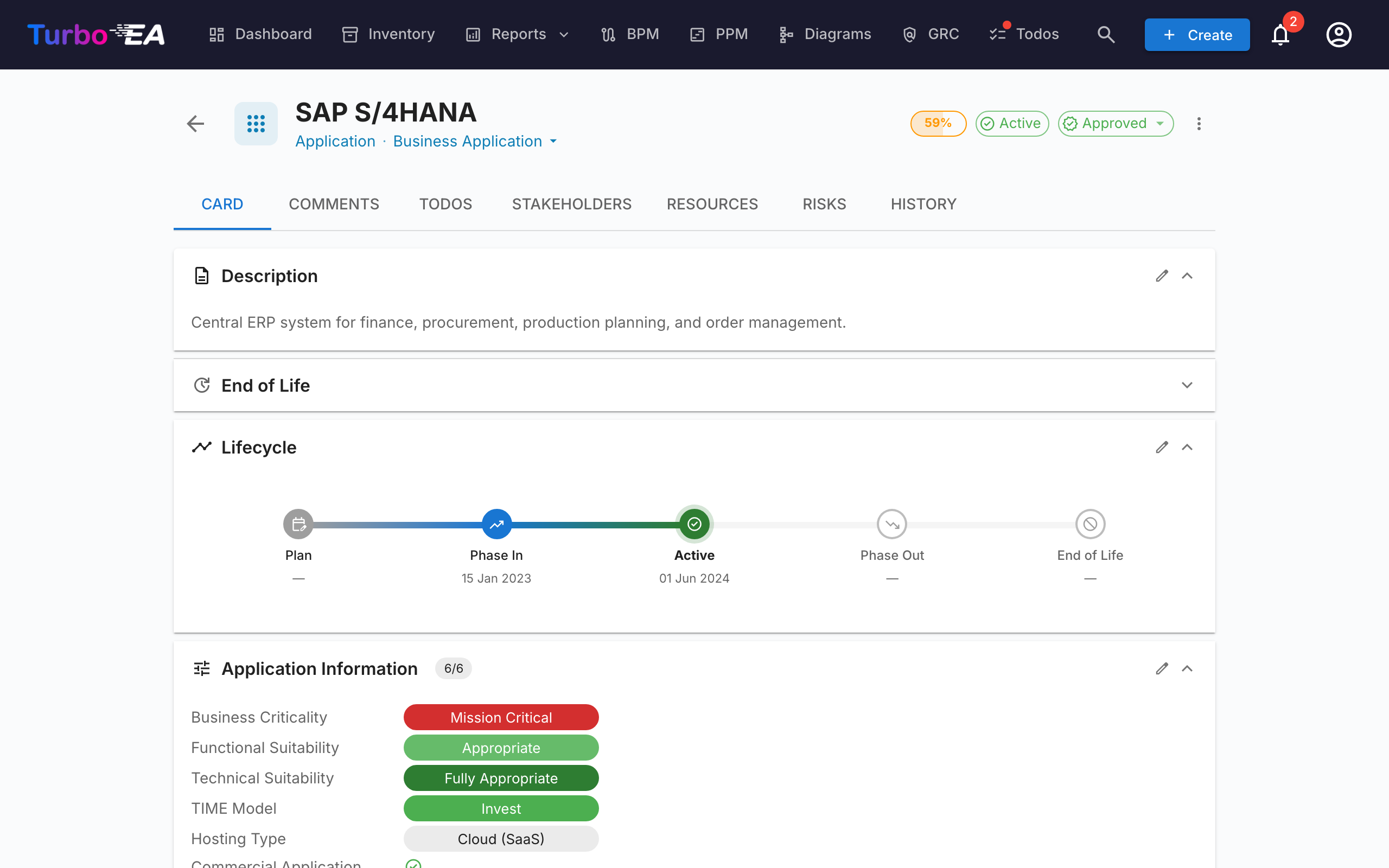
Cards that are in scope of any finding also surface a Compliance tab on their detail page (gated on compliance.view). It lists every finding currently linked to the card with the same Acknowledge / Accept / Create risk / Open risk actions as the GRC view, so an Application owner can triage their own findings without leaving the card. The same auto-hide rule applies to the Risks tab on Card Detail: both tabs only appear when the card actually has linked items, so cards with no GRC activity don't carry empty tabs.
Demo data¶
SEED_DEMO=true populates a hand-curated set of example compliance findings (across all six built-in regulations and a mix of lifecycle states) against the NexaTech demo cards, so the tab is usable out of the box without an AI provider configured.
Permissions¶
| Permission | Default roles |
|---|---|
compliance.view |
admin, bpm_admin, member, viewer |
compliance.manage |
admin |
compliance.view gates read access to the register, the per-card Compliance tab and the overview KPIs. compliance.manage is needed to create or edit findings, change their status, run scans, bulk-act, promote to a Risk, or delete a finding.