Tasks & Surveys
The Tasks page centralizes all pending work items in one place. It has two tabs: My Todos and My Surveys.
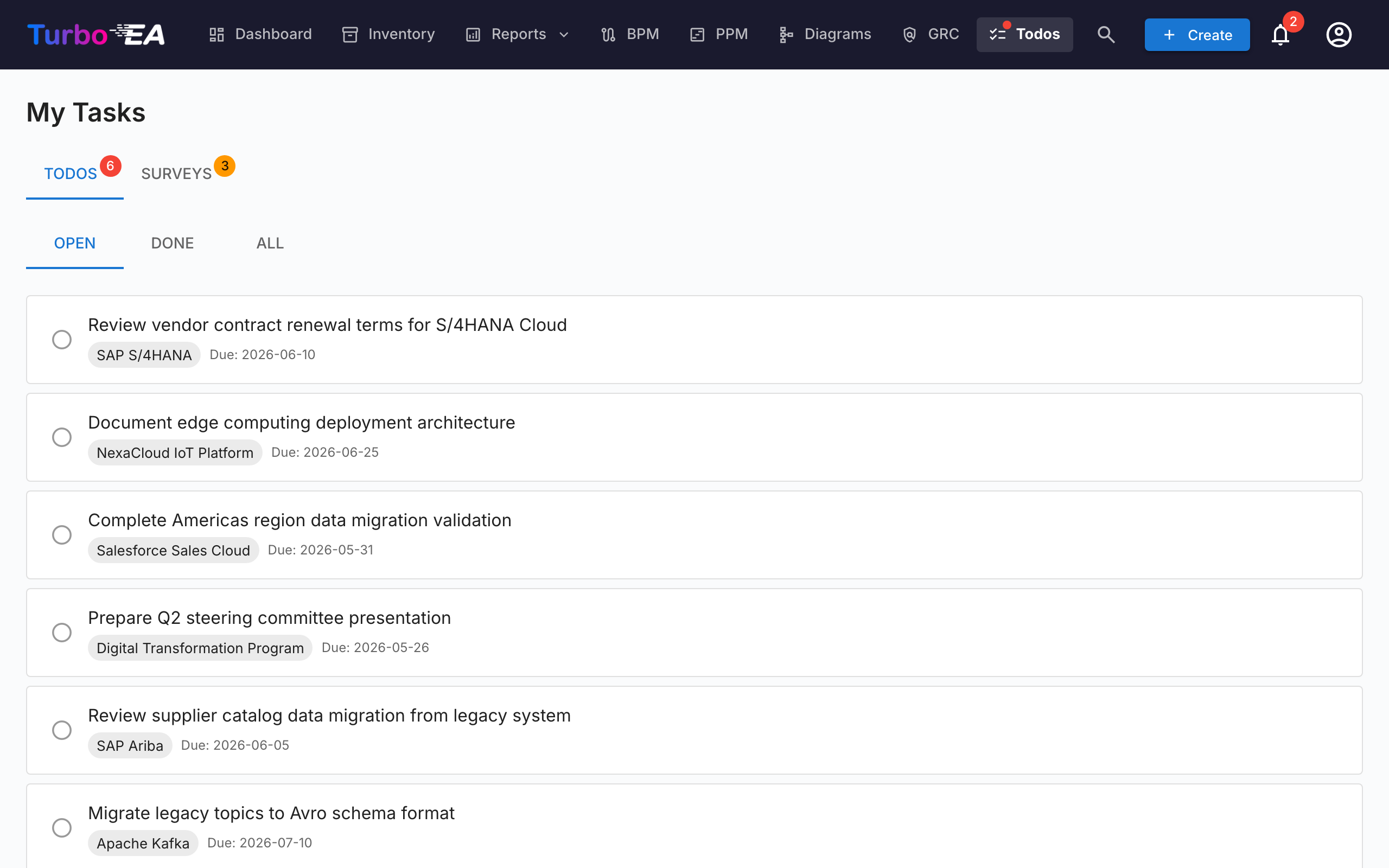
My Todos
Todos are tasks assigned to you or created by you. They can be linked to specific cards or standalone.
Filtering, search and sorting
Origin chips — Every todo carries an origin: where it came from. When your list mixes tasks from more than one origin, filter chips appear above it — click a chip to show only todos of that origin (click several to combine them); each chip shows a live count. Origins are:
- Project task — Synced from a PPM initiative's task board
- Risk — Risk-owner assignments and recurring mitigation-task cycles from the GRC Risk Register
- ADR / SoAW — Signature requests on architecture decisions and Statements of Architecture Work
- Process approval — Process-flow revisions awaiting your review (BPM)
- Extension — Created by an installed extension
- Manual — Created by hand, on a card or standalone
Each row also carries a colour-coded origin icon and accent stripe, so mixed lists scan at a glance. A task that a connector extension has mirrored to an external tracker (Jira, GitLab, …) keeps its real origin and shows the external reference (e.g. KAN-6) as a small link — the mirror is for reference only, and the task is always completed in Turbo EA. See Jira Todo Sync for the Jira connector.
Grouped view — By default the list is segmented into one collapsible section per origin, in a fixed order. Each section header shows the origin icon, the number of tasks, and — when some are overdue — a red count so a collapsed section still signals urgency. Click a header to collapse or expand it; collapsed sections are remembered. The group/flat toggle next to the sort control switches to a single flat list (useful to triage by due date across all origins); this choice is remembered too. A list where every task shares one origin renders flat automatically.
Status — Use the status toggle to filter:
- Open — Tasks still pending or in progress
- Upcoming — Scheduled future occurrences of recurring todos that aren't due yet
- Done — Completed tasks
- All — Everything
Sort — Order by due date (most urgent first), newest first, or origin. Your choice is remembered.
Search — The search box filters instantly across the todo text, linked card, assigner and assignee names.
Managing Todos
- Quick toggle — Click the checkbox to mark a todo as done (or reopen it)
- Who assigned it — On the Assigned to me tab each todo shows a From: chip naming the person who assigned it; on Created by me the chip names the assignee instead
- Card link — If a todo is linked to a card, click the card name to navigate to its detail page
- System todos — Some todos are auto-generated by the system (e.g., "Respond to survey for Card X"). These include a direct link to the relevant action
Creating Todos
You can create todos from two places:
- From this page — Click + New Todo, enter a title, optionally set an assignee, due date, and link to a card
- From a card's Todos tab — Create a todo that is automatically linked to that card
Each todo tracks:
| Field | Description |
|---|---|
| Title | What needs to be done |
| Status | Open or Done |
| Assignee | The user responsible |
| Due date | Optional deadline |
| Card | The linked card (optional) |
Recurring todos
When creating a todo from a card's Todos tab, switch on Repeats to turn it into a recurring todo — perfect for regular activities like "have this card reviewed every 6 months". Choose how often it repeats (every N days, weeks, months, or years).
- Automatic roll-forward — When you mark a recurring todo done, the next occurrence is created automatically with its due date shifted by the cadence (calendar-correct, so a month-end review stays at month-end).
- Lead time — A far-future occurrence stays Scheduled (hidden from your open list, with no notification) until its lead-time window opens, then it becomes a normal open todo and notifies the assignee. The lead time defaults sensibly per cadence and can be adjusted.
- Activate early — Click the upcoming-event icon on a scheduled todo to activate it immediately if you want to do the review ahead of schedule.
My Surveys
The Surveys tab shows all data-maintenance surveys that need your response. Surveys are created by administrators to collect information from stakeholders about specific cards (see Surveys Administration).
Each pending survey shows:
- The survey name and target card
- A Respond button that navigates to the response form
The survey response form presents questions configured by the admin. Your answers may automatically update card attributes, depending on how the survey was configured.
The card's name at the top of the response form opens the card in a side panel, so you can check its current details before answering without leaving the form or losing what you have typed. The panel's Open full page button takes you to the card itself. The link appears when you are allowed to view the card.
Date fields are entered in your browser's regional format, the same as on the card itself, while dates shown elsewhere in the form follow the workspace date format set under Admin → Settings.