Slack Notifications
Your team already lives in Slack. Slack Notifications sends each person their Turbo EA notifications as a Slack direct message — a todo assigned, a decision waiting for their signature, a risk that landed on their plate — with a button straight back to the card.
Everyone stays in control: a Slack column appears in their own notification preferences, next to In-app and Email, and they tick exactly which notification types reach them there. Nothing is switched on by default.
At a glance
| Licence | Commercial — a signed entitlement is required |
| Minimum Turbo EA version | 2.89.1 |
| Permission | ext.slack-notify.admin |
| Data access grants | core.notifications.channel, core.users.read |
| Backend restart needed | Yes — it ships backend code |
| Where it appears | Admin → Settings → Integrations → Slack · a Slack column in everyone's notification preferences |
Only outbound HTTPS to slack.com is required — no inbound URL, no OAuth
callback and no Slack Marketplace review — so it works on a self-hosted or
firewalled instance.
Setup
Open Admin → Settings → Integrations and choose the Slack sub-tab. The panel walks you through three numbered steps.
1. Create the Slack app
The panel shows a ready-made app manifest. In Slack, choose Create New App →
From a manifest, pick your workspace, paste the manifest (there is a Copy
manifest button), then Install to Workspace and copy the Bot User OAuth
Token — it starts with xoxb-.
The manifest asks for four bot scopes and nothing else:
| Scope | Why |
|---|---|
chat:write |
Post the direct message |
im:write |
Open the direct-message conversation with a person |
users:read |
Read the member directory |
users:read.email |
Match a Turbo EA account to a Slack member by email |
Leave token rotation off
The manifest disables Slack's token rotation deliberately. Turning it on expires the bot token every 12 hours, which this version cannot refresh — delivery would stop twice a day.
2. Connect the workspace
| Field | Notes |
|---|---|
| Bot user OAuth token | The xoxb-… token. Stored encrypted; leave blank later to keep it |
| Name shown in Slack messages | Defaults to Turbo EA. Used in the message button and footer |
| Deliver notifications to Slack | On by default — a pause switch, not a setup step |
Press Save, then Test connection; a chip confirms Connected to ….
3. Match people to Slack
Accounts are matched by email address the first time someone is due a message, and the result is cached. The People card lists everyone, worst first, with chips showing who is connected, not in Slack, or not checked yet.
For anyone whose Slack address differs from their Turbo EA email, type their
Slack member ID (like U01ABCDEF) and press Save — a manual mapping
always wins over the email match. Send test message proves a mapping works end
to end. Clearing the field hands the person back to email lookup.
People Slack does not recognise are retried automatically once a day, so someone who joins the Slack workspace after getting a Turbo EA account is picked up without anyone intervening.
Only member IDs are stored
The extension stores Slack member IDs and nothing else — email addresses stay in Turbo EA.
What each person controls
Once the extension is running, everyone gets a Slack column in Notification preferences, alongside In-app and Email.
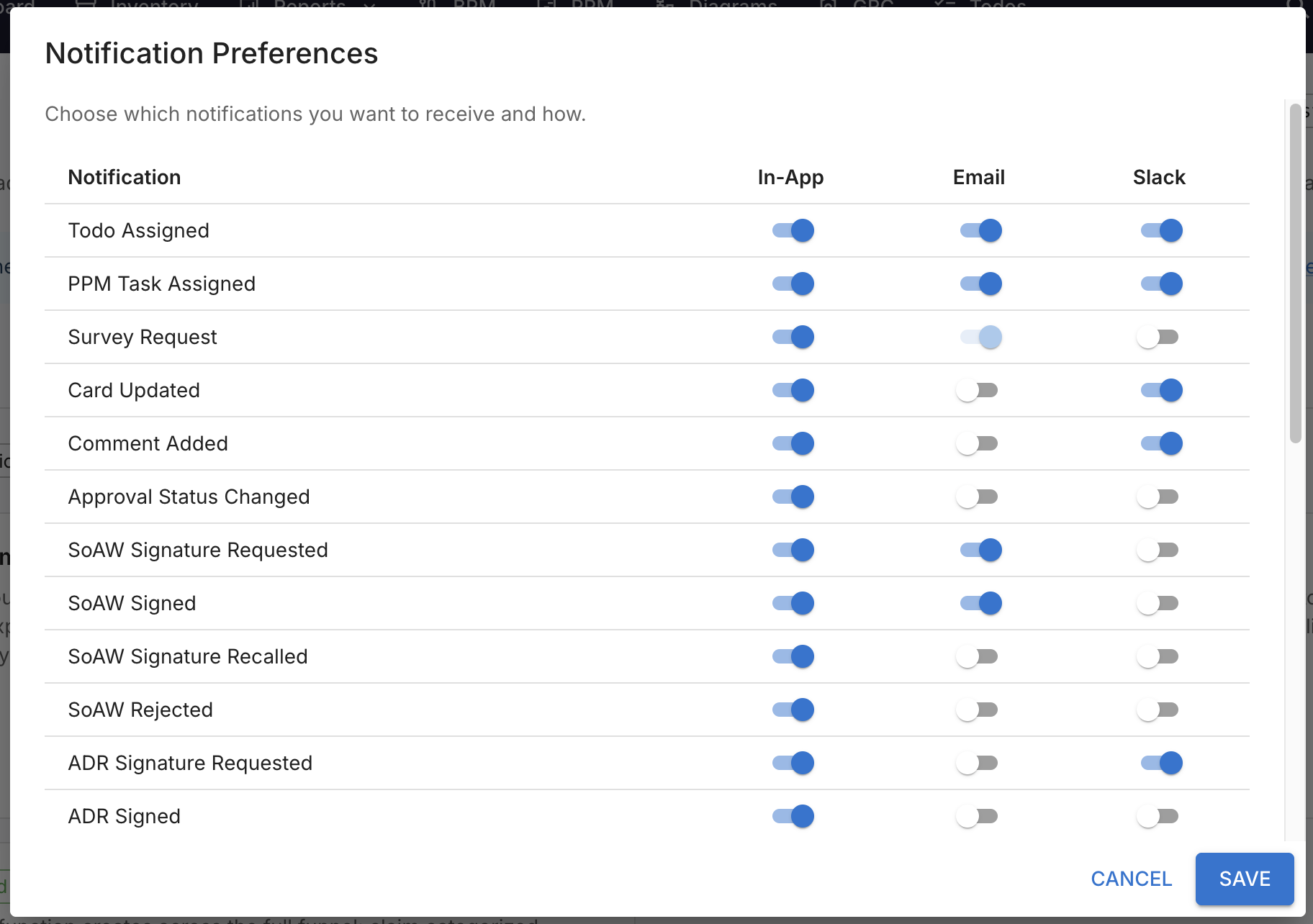
- Every type is off by default. Nobody receives a Slack message until they switch that type on for themselves.
- A footer under the table tells each person whether their account is connected to Slack, or that they should ask an administrator to map it.
- The in-app-only upgrade announcement is never delivered to Slack.
Turbo EA decides which notification types exist and who opted in; the extension only carries the message.
What a message looks like
A Slack direct message contains the notification's title in bold, its message, a button labelled Open in Turbo EA (using the name you configured) linking to the relevant card or page, and a small footer line naming the app and the notification type.
Delivery is strictly one-way — Turbo EA to Slack — and always a personal direct message. Nothing is ever posted to a channel.
Monitoring delivery
The Delivery log card shows how many messages are waiting, sent and failed, plus the 50 most recent log lines.
Messages queue and are sent within seconds. If Slack rate-limits or errors, the extension retries with a growing back-off and gives up after six attempts; permanent failures — a revoked token, a deleted user, a missing scope — stop immediately rather than retrying pointlessly. Delivered rows are pruned after 14 days.
A queue that is not moving has exactly two causes, and the panel names the one that applies:
- No bot token is stored — paste the token and save.
- Delivery is switched off — turn Deliver notifications to Slack back on.
Retry failed requeues everything that gave up and re-checks people Slack did not recognise. It is the recovery path after an outage or a token replacement.
Permissions
| Permission | Grants |
|---|---|
ext.slack-notify.admin |
Configure the workspace connection, map people, send test messages, read and retry the delivery log |
The sub-tab is hidden from anyone without it. End users need no extra permission — they only tick boxes in their own notification preferences.
If the licence lapses or the extension is disabled
Delivery pauses and the Slack column disappears from the preferences dialog, but every setting and opt-in is kept. Applying a renewed licence resumes delivery. The same is true of the Deliver notifications to Slack switch, which pauses delivery without uninstalling anything — queued messages simply wait.
The bot token is stored encrypted and excluded from workspace transfer.
Limitations
- Direct messages only — no channel posts.
- No interactive buttons. Actions such as Mark done or Approve from inside Slack are not available in this version; the message links back into Turbo EA instead.
- No digests — each notification is its own message rather than a batched summary.
- Do not enable Slack token rotation (see the warning above).