Workspace Transfer
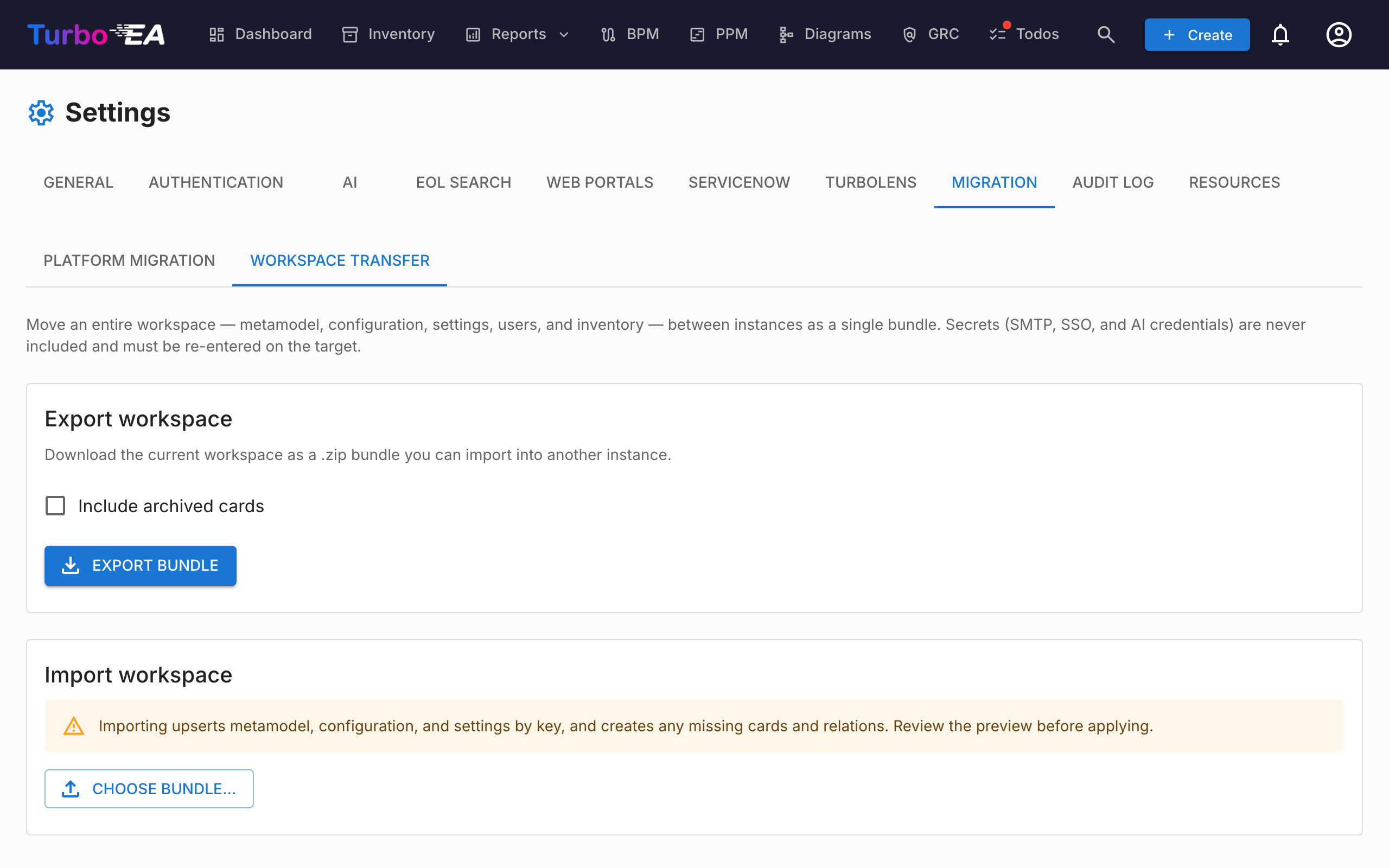
Workspace Transfer (Admin → Settings → Migration → Workspace Transfer) moves an entire Turbo EA workspace from one instance to another as a single, self-contained bundle. The driving use case: you build out a workspace on a local instance and need to promote everything to Production.
What's included
The export captures the full workspace as a .zip bundle containing one Excel workbook (all structured data, one sheet per domain) and, where relevant, an assets/ folder for unstructured files:
- Metamodel — card types and relation types, including all custom fields, subtypes, sections, and translations.
- Configuration — roles, per-type stakeholder roles, tag groups and tags, calculated fields, EA principles, and compliance regulations.
- Settings — currency, date format, feature flags, login branding, enabled locales, and the rest of the general application settings.
- Users — email, display name, role, and active flag (used to re-link ownership and assignments on the target). No passwords or SSO identities.
- Inventory — every card (with its hierarchy, lifecycle, and attributes), card tags, and relations.
- Card context — stakeholders, document links, comments, todos, and file attachments.
- Module data — BPM (process diagrams, elements, flow versions, assessments), PPM (status reports, costs, budgets, risks, tasks, WBS, dependencies), the GRC risk register (risks, mitigation tasks and occurrences, card links), GRC compliance findings (with the analysis runs they reference), architecture decisions and Statements of Architecture Work, free-draw diagrams, saved reports, bookmarks (saved inventory views, including their shares), web portals, and surveys.
- Assets — binary file attachments, diagram and BPMN XML, and the logo/favicon travel as separate files inside the bundle's
assets/folder.
What's never included
For security, secrets are never exported:
- SMTP password
- SSO client secret
- AI provider API key
- ServiceNow credentials
You must re-enter these on the target instance after importing. This is unavoidable by design: encrypted values are tied to the source instance's SECRET_KEY and cannot be decrypted anywhere else.
A few other things stay behind by design:
- TurboLens analysis results (vendor analysis, duplicate clusters, modernization assessments, saved architecture assessments) and the dashboard's KPI history are instance-local — re-run the analyses on the target. Compliance findings are the exception and do transfer.
- Browser-local state never transfers: the inventory grid's ad-hoc column ordering lives in your browser's local storage, not in the database. Column layout that you saved inside a Saved View does transfer with the view.
Exporting
- Open Admin → Settings → Migration → Workspace Transfer.
- (Optional) tick Include archived cards to add archived inventory to the bundle.
- Click Export bundle. Your browser downloads
workspace_export_<timestamp>.zip.
Importing
- On the target instance, open Admin → Settings → Migration → Workspace Transfer.
- Under Import workspace, click Choose bundle… and select the
.zipyou exported. - Turbo EA parses the bundle and shows a dry-run preview — a per-section table of how many entities would be created, updated, skipped, or are in conflict. Nothing is written yet.
- Review the preview, then click Apply import.
Import is idempotent: metamodel and configuration are matched by key, cards by external id or by type + hierarchy path, and users by email. Re-importing the same bundle is safe — already-present entities are skipped rather than duplicated. Existing built-in metamodel types keep their identity; only their editable schema is merged.
Reading the preview
- Skipped means "already present — no action needed." On a fresh install you will typically see skips for content that ships with Turbo EA (stakeholder roles, resource types, default settings) because the bundle's copy is identical to what the target already has. Expand a section row (the arrow on the left) to see the per-reason breakdown and any conflict or failure messages.
- Version advisory. The preview shows which Turbo EA version the bundle was exported from and warns when it differs from the importing instance. The warning is advisory — the import still runs — but exporting and importing on the same version is the safest path.
After importing
- Re-enter any SMTP, SSO, and AI credentials under their respective settings tabs.
- Synthetic users referenced by the bundle are created deactivated; activate them under Admin → Users as needed.
- User-owned data follows the user, matched by email. Todos, saved views, favorites, and other personal data belong to the account whose email matches the one in the bundle. If you log into the target with a different email than you used on the source, your personal items will appear to be missing — they are attached to the (possibly deactivated) matching account. Log in with the same email, or activate the matched account under Admin → Users.
- Private saved views are visible only to their owner; shared and public views follow their visibility settings.
Starting over
There is no built-in "undo import." To reset a target instance and re-import from scratch, restart it once with RESET_DB=true (drops and re-creates all tables, then re-seeds), then set it back to RESET_DB=false before the next restart so you don't wipe the freshly imported data.
Permissions
Workspace Transfer is gated by two dedicated permissions, both granted to administrators:
admin.export_workspace— export the bundle.admin.import_workspace— preview and apply an import.